
❄️ 🎉 Winter Sale
Quick AI Summary
To speed up WordPress, start with better hosting, enable caching, compress images, remove unnecessary plugins, reduce CSS and JavaScript weight, and use a CDN. These changes improve loading speed, support better Core Web Vitals, and create a smoother user experience across desktop and mobile devices.
Verifiable Facts Block
- WordPress speed is affected by hosting quality, theme weight, plugin usage, image size, and front-end file loading.
- Caching reduces repeated server work by serving prebuilt content faster.
- Compressed images and modern image formats reduce page weight and help pages load faster.
- Extra plugins, unused scripts, and bloated page builders can increase load time.
- A CDN can improve delivery speed for visitors located far from your origin server.
Direct Answer: If you want to know how to speed up WordPress, focus on the biggest performance wins first: use fast hosting, install a caching plugin, optimize images, reduce unnecessary plugins, minify CSS and JavaScript, and use a CDN. These steps significantly reduce load time and improve performance.”
Why WordPress Websites Become Slow
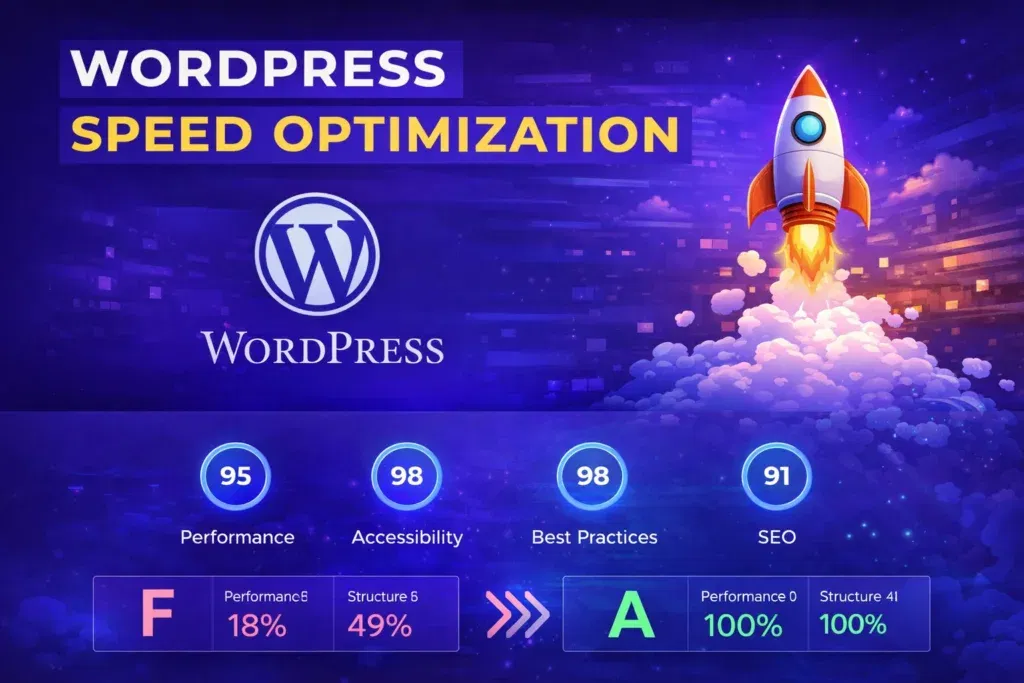
Heavy Themes and Page Builders
One of the most common reasons WordPress sites become slow is the use of heavy themes and complex page builders. Many themes include large CSS files, animations, sliders, and design elements that load on every page even when they are not needed.
If your website uses a page builder like Elementor or similar tools, it is important to minimize unnecessary widgets, animations, and scripts. Lightweight themes and optimized builder settings can significantly reduce page load time.
Too Many Plugins
Plugins extend WordPress functionality, but installing too many can negatively impact performance. Each plugin may add additional scripts, database queries, or external requests that increase load time.
Website owners should regularly review installed plugins and remove those that are unnecessary or outdated. Keeping only essential plugins helps maintain a clean and fast WordPress environment.
Poor Web Hosting
Hosting plays a major role in WordPress speed. Cheap shared hosting environments often place hundreds of websites on the same server, which can reduce available resources and slow down performance.
Choosing a reliable hosting provider with optimized WordPress infrastructure can dramatically improve server response time and overall website speed.
Unoptimized Images
Large image files are one of the biggest causes of slow websites. Uploading images directly from cameras or design software without compression can dramatically increase page size.
Image optimization plugins like Imagify image optimization plugin can automatically compress images and convert them to modern formats such as WebP. This reduces page weight and allows pages to load faster.
How to Test WordPress Website Speed
Before optimizing your website, it is important to measure current performance. Speed testing tools help identify issues such as large files, slow server response times, and render-blocking resources.
Using Google PageSpeed Insights
Google PageSpeed Insights analyzes your website and provides detailed suggestions to improve performance. It also measures Core Web Vitals, which are important signals used by Google for ranking and user experience.
Testing With GTmetrix
GTmetrix provides a comprehensive performance report showing page size, load time, request count, and optimization opportunities. It is especially useful for identifying large files and scripts slowing down your site.
Understanding Core Web Vitals
Core Web Vitals are performance metrics focused on user experience. These metrics measure loading speed, interactivity, and visual stability.
- LCP (Largest Contentful Paint) measures loading speed.
- INP / FID measures responsiveness.
- CLS (Cumulative Layout Shift) measures visual stability.
Improving these metrics helps create a faster website and improves your chances of ranking higher in search results.
Upgrade to Fast WordPress Hosting
Hosting quality is one of the biggest factors that affects website speed. Even if you optimize your website perfectly, poor hosting can still slow everything down. A fast and reliable hosting environment provides better server response time, faster database queries, and improved stability.
Shared vs Managed WordPress Hosting
Shared hosting is the cheapest option, but it often places hundreds of websites on a single server. When other websites consume resources, your site may slow down as well.
Managed WordPress hosting environments are optimized specifically for WordPress performance. They include server-level caching, faster storage, and optimized configurations designed to handle traffic more efficiently.
Server Response Time
Server response time, also known as TTFB (Time to First Byte), measures how quickly the server responds to a browser request. Faster servers reduce waiting time and help pages start loading sooner.
TIP: Choose hosting providers that offer SSD storage, modern PHP versions, optimized server configurations, and built-in caching systems.
Install a WordPress Caching Plugin
Caching is one of the most powerful ways to speed up WordPress websites. Normally, WordPress generates pages dynamically every time a visitor opens a page. This process involves database queries, PHP processing, and server work.
Caching plugins store pre-generated versions of your pages so visitors can load them instantly without repeating the entire process.
How Caching Improves Speed
- Reduces server processing time
- Decreases database queries
- Delivers pages faster to visitors
- Improves Core Web Vitals performance
A powerful caching solution like the WP Rocket speed optimization plugin can automatically enable page caching, browser caching, file optimization, and lazy loading features.
PRO TIP: Page caching can dramatically reduce loading time and is often the fastest improvement you can make to a slow WordPress website.
Optimize Images for Faster Loading
Images usually account for the largest portion of a webpage’s size. Large images increase page weight and slow down loading speed, especially for mobile users.
Image Compression
Image compression reduces file size while maintaining visual quality. This significantly decreases the amount of data browsers must download.
WebP Image Format
Modern formats like WebP provide much smaller file sizes compared to traditional JPEG or PNG images. Converting images to WebP can reduce image size dramatically without noticeable quality loss.
The Imagify image optimization plugin automatically compresses images and converts them into optimized formats that improve website speed.
Lazy Loading
Lazy loading delays loading images until they become visible on the screen. This reduces initial page weight and allows the page to load faster for visitors.
TIP: Always resize images before uploading them to WordPress. Uploading huge images and relying only on compression still wastes server resources.
Minify CSS, JavaScript, and HTML
Every WordPress website loads multiple CSS and JavaScript files. When these files are large or poorly optimized, they slow down page rendering and increase loading time.
Minification removes unnecessary characters such as spaces, line breaks, and comments from code files. This reduces file size and allows browsers to process them faster.
Why Code Minification Matters
- Reduces file sizes
- Speeds up file downloads
- Improves PageSpeed Insights score
- Helps optimize Core Web Vitals
Many performance plugins automatically handle CSS, JavaScript, and HTML minification. This means you can improve speed without manually editing code.
TIP: After enabling minification, always test your website to ensure scripts and styles still function correctly.
Use a Content Delivery Network (CDN)
A Content Delivery Network distributes copies of your website files across multiple servers located around the world. Instead of loading everything from one server location, visitors receive content from the server closest to them.
This reduces latency and improves loading speed for global audiences.
What a CDN Does
- Delivers static files faster
- Reduces server load
- Improves website stability during traffic spikes
- Speeds up global website performance
CDN Benefits for Global Visitors
If your audience is located in different countries, a CDN can significantly improve loading speed by reducing the physical distance between the user and the server.
Reduce HTTP Requests
Each element on a webpage requires an HTTP request. Images, scripts, stylesheets, fonts, and videos all create additional requests that can slow down loading.
Combine Scripts and Styles
Combining CSS and JavaScript files reduces the number of requests the browser needs to make. Many optimization plugins include this feature automatically.
Remove Unused Plugins
Plugins often load scripts even when they are not used on every page. Removing unused plugins or replacing heavy plugins with lighter alternatives can dramatically reduce unnecessary requests.
Optimize WordPress Database
Over time, WordPress databases accumulate unnecessary data such as post revisions, spam comments, and temporary cache files. Cleaning the database helps reduce processing time and improves performance.
Remove Post Revisions
Every time a post is edited, WordPress stores a revision. Hundreds of revisions can accumulate and slow down database queries.
Clean Database Tables
Removing unnecessary tables and optimizing existing ones helps keep the database efficient and responsive.
PRO TIP: Schedule regular database cleanup to prevent unnecessary data from accumulating over time.
Optimize Elementor Websites for Speed
Elementor is a powerful page builder, but if not optimized properly it can increase page weight and slow down websites.
Reduce Widgets and Animations
Using too many widgets, animations, and motion effects increases script loading and page complexity. Keeping layouts simple helps maintain faster loading times.
Enable Performance Settings
Elementor includes built-in performance settings that reduce unnecessary assets and improve page speed. Proper configuration can significantly improve performance.
You can also learn advanced optimization techniques in this Elementor Pro optimization guide to further improve page builder performance.
WordPress Speed Optimization Checklist
| Optimization Step | Impact |
| Upgrade hosting | Faster server response time |
| Enable caching | Reduces server processing |
| Compress images | Reduces page size |
| Minify CSS and JavaScript | Improves loading speed |
| Use CDN | Faster global delivery |
| Clean database | Improves query performance |
| Remove unused plugins | Reduces server workload |
Final Thoughts
Learning how to speed up WordPress is essential for improving user experience, search rankings, and website conversions. Even small improvements in loading time can significantly impact how visitors interact with your website.
By optimizing hosting, enabling caching, compressing images, reducing unnecessary plugins, and using modern performance techniques, you can dramatically improve your website speed.
Consistent monitoring and optimization ensure your website remains fast as content grows and traffic increases.
Frequently Asked Questions
Why is my WordPress website slow?
A WordPress website can become slow due to poor hosting, large uncompressed images, too many plugins, heavy themes, or lack of caching. Optimizing these areas can significantly improve loading speed.
What is the fastest way to speed up WordPress?
The fastest improvements usually come from installing a caching plugin, optimizing images, and upgrading to better hosting. These changes reduce server workload and improve page delivery speed.
Does a CDN really speed up WordPress?
Yes. A Content Delivery Network stores copies of your website files across multiple global servers. Visitors receive content from the server closest to them, which reduces loading time.
Do plugins slow down WordPress?
Plugins themselves do not automatically slow down WordPress, but poorly coded or unnecessary plugins can increase server load and add extra scripts. Regularly removing unused plugins helps maintain performance.
What is a good page speed score for WordPress?
A PageSpeed score above 90 is considered excellent. However, focusing on real user experience and Core Web Vitals metrics is more important than chasing a perfect score.
Should I optimize images before uploading to WordPress?
Yes. Resizing and compressing images before uploading reduces file size and improves website performance. Image optimization plugins can further compress images automatically.