Offset Menu Anchor Elementor Pro: Fix Scroll Issues Easily
When you use anchor links in Elementor, everything should scroll smoothly. However, many websites face a frustrating issue. The page scrolls to the wrong place, stops too early, or hides...

WPPlugShop focuses on GPL-distributed WordPress resources. Products may not include official developer support, official vendor license keys, automatic vendor updates, or vendor account access unless clearly stated. Avoid nulled files because they can create security, malware, and SEO risks.
This guide gives you the practical WordPress answer without unnecessary complexity.
Use this article to understand the key benefits, limitations, best use cases, and smarter next steps for your WordPress website.
When you use anchor links in Elementor, everything should scroll smoothly. However, many websites face a frustrating issue. The page scrolls to the wrong place, stops too early, or hides part of the content behind a sticky header. Because this problem is so common, thousands of users look for a reliable fix. The offset menu anchor Elementor Pro technique is the most effective solution for solving this issue in 2025.
This guide explains everything in simple language. You’ll learn why the problem happens, how to fix it, which method works best, and how to avoid future anchor errors. The steps are beginner-friendly, and the explanations are detailed enough for advanced users too.
Why Anchor Links Misbehave in Elementor
Anchor links are supposed to send visitors to a specific section. They help create clean navigation on landing pages, one-page websites, and long content pages. Yet, when a sticky header covers the top of your section, visitors see incomplete content. This creates confusion and hurts your user experience.
Sticky menus cause this because they remain at the top while scrolling. Since Elementor scrolls exactly to the anchor position, the header ends up blocking part of it. That is why adding a scroll offset becomes essential. With the offset menu anchor Elementor Pro setup, you can control exactly where the page stops.
Understanding What an Offset Is
An “offset” is a small positioning adjustment applied to the anchor target. Instead of scrolling directly to the anchor, the page scrolls slightly above it. This ensures your header does not cover the section.
Increasing or decreasing the offset also helps:
Improve mobile navigation
Correct jumps caused by animations
Fix scroll behavior on long pages
Maintain consistent spacing across devices
Enhance the overall readability of the page
Because of this, using an offset is not just a fix—it is an improvement to your site’s user experience.
How to Set Up an Anchor in Elementor
Before adjusting anything, start by creating a basic anchor.
Step 1: Add the Anchor Widget
Open your page in Elementor.
Drag the Menu Anchor widget above the section you want.
Place it at the top of the section for best results.
Step 2: Name the Anchor
In the ID field, enter something short, for example:
aboutservicespricing
Step 3: Connect Menu or Button Links
Add #about or your ID to any link or menu item.
This creates the foundation for the offset menu anchor Elementor Pro adjustment you’ll apply later.
Method 1: Fixing the Offset Using Simple CSS (Best Method)
This method works for most websites, and it requires no complex setup.
Step-by-Step
Go to Appearance → Customize → Additional CSS
Paste this code:
Why This Works
This code shifts the anchor upward by 120px. When visitors click a link, the scroll lands 120px lower—exactly where you want it.
How to Adjust
If your header is tall:
Use –150px
Use –180px
Use –200px
If your header is short:
Use –80px
Use –60px
This method gives you full control, and it works on all devices.
Method 2: Using Custom HTML + CSS (Advanced but Precise)
Some layouts require extra precision, especially sections with animations or dynamic content.
Code Example
And then add:
This approach creates an invisible placeholder right above your actual content. It ensures perfect alignment on every screen size.
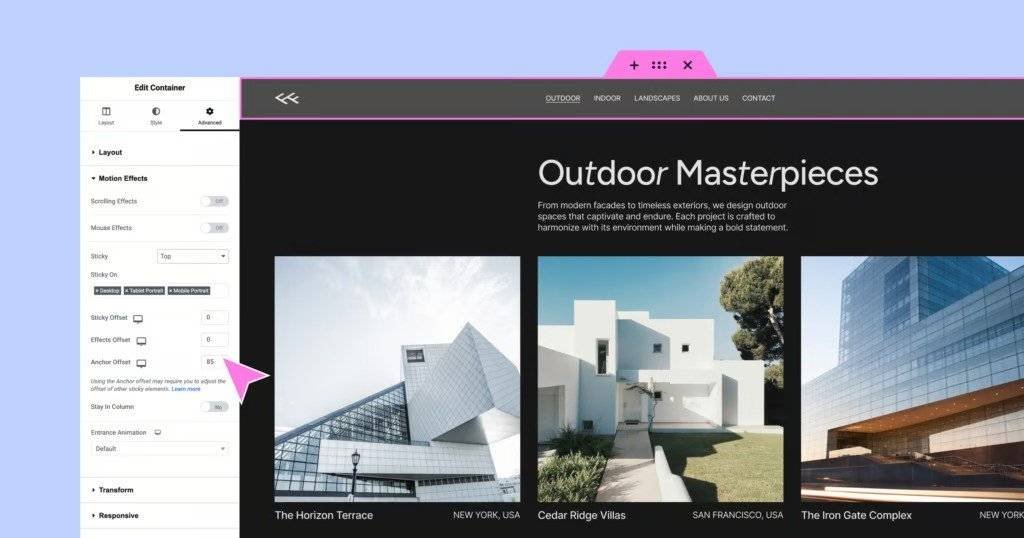
Method 3: Using Elementor Pro’s Motion & Scrolling Effects
Elementor Pro allows you to improve your scroll behavior through motion effects. While this is not a direct offset tool, it supports smoother user experience.
How to Use It
Select your section.
Go to Advanced → Motion Effects.
Enable Smooth Scrolling.
Adjust entrance animations if needed.
Combining motion effects with the offset menu anchor Elementor Pro CSS method results in a clean and stable navigation flow.
Method 4: Adjusting Offset for Mobile Devices
Mobile menus are usually taller than desktop menus. Because of this, you may need a different offset for mobile.
Adding device-specific CSS is simple:
This ensures your anchor links always scroll correctly on small screens.
Common Problems and How to Fix Them
1. Scroll Goes Too Far
Increase the negative value until the scroll aligns perfectly.
2. Scroll Stops Too High
Decrease the negative value.
3. Anchor Doesn’t Work on Mobile
Your sticky header height is larger on mobile. Adjust the offset for mobile devices separately.
4. Page Jumps During Loading
Enable “Scroll to Anchor Offset” if your theme includes it—or rely on the CSS method above.
5. Smooth Scroll Feels Delayed
Disable extra scrolling scripts added by third-party plugins.
Best Practices for Perfect Anchor Navigation
To ensure professional-level navigation, follow these tips:
✔ Add Anchors at the Top of Your Sections
Avoid placing them in the middle or bottom.
✔ Keep IDs Short and Clear
This improves speed and prevents errors.
✔ Test Across Devices
Sticky headers behave differently on each screen size.
✔ Avoid Overlapping Animations
Too many effects can interfere with anchor scroll.
✔ Keep Your Header Height Consistent
Changing header size during scroll causes unpredictable offsets.
By following these practices and applying the offset menu anchor Elementor Pro technique correctly, your scrolling experience becomes smooth and flawless.
Why This Fix Matters for SEO and User Experience
Google values user experience. When your anchor links land in the wrong place, visitors get confused. They scroll back up or leave your page.
Fixing your anchor offset helps:
Reduce bounce rate
Improve user engagement
Increase page scroll depth
Boost content accessibility
Strengthen page structure
Support Core Web Vitals signals
Clear navigation also improves your internal link strategy, which helps Google crawl your content more effectively.
Final Verdict: The Best Way to Fix Anchor Offset in Elementor
Anchor issues can be annoying, but they are easy to fix with the right method. The offset menu anchor Elementor Pro technique is the most reliable and user-friendly solution. It creates smoother navigation, improves readability, and enhances your visitor experience on every device.
Whether you use a sticky header, a one-page design, or a long landing page, this method ensures your links always land at the perfect spot. It is simple, effective, and fully compatible with Elementor Pro and modern themes.
Explore GPL WordPress plugins, themes, templates, and WooCommerce tools.
Get affordable WordPress resources for design, SEO, performance, forms, automation, WooCommerce, and more.
Quick FAQs
Short answers for common WordPress GPL and safety questions.
Are WordPress GPL plugins legal?
WordPress GPL plugins can be legally redistributed when they are distributed under GPL license terms. The important part is to avoid misleading official license claims and unsafe nulled files.
What is the difference between GPL and nulled plugins?
GPL-distributed plugins are shared under open-source license terms. Nulled plugins are usually cracked, modified, or redistributed without transparency.
Do GPL products include official developer support?
GPL-distributed products usually do not include official vendor support, official account access, or vendor license keys unless clearly stated.

Qamar
WPPlugShop publishes practical WordPress guides focused on GPL awareness, site performance, affordable tools, WooCommerce, SEO, analytics, and safer website building.
Related WordPress Guides
More practical resources to help you build smarter, safer, and faster with WordPress.